Ask AI Overview
Ask AI lets you create and edit effects by describing what you want in plain language. It connects Effect House to an AI coding agent that works directly in your open project.
The agent can build scenes, write scripts, import or generate assets, and connect everything together while your project updates live in the editor. You can review the changes as they happen and continue editing your project manually at any time.
Unlike single-prompt AI generation, Ask AI is a conversation. You can start with a new or existing project, create an entire effect or make small changes, then continue refining your project by chatting with the agent.

How Ask AI Works
When you send a prompt, Ask AI uses the selected AI coding agent to work directly in your open project. Depending on your request, the agent can:
- Build scenes by adding, arranging, and configuring scene objects and components
- Write scripts by creating or editing APJS TypeScript scripts for gameplay and interactions
- Import and generate assets by searching the Asset Library, generating AI images, or using bundled assets
- Verify its work by capturing Preview screenshots and checking script logs before making corrections
As the agent works, you can watch your project update in the Hierarchy panel, Inspector panel, and Preview panel. You can also stop at any time to review or make changes yourself.
Ask AI generates logic as APJS scripts and does not create Visual Scripting graphs. If your project uses Visual Scripting, see Ask AI Capabilities and Limitations before using Ask AI.
Getting Started
To use Ask AI, you'll need:
- Effect House with a project open
- A supported AI coding agent installed on your computer, with your own account for that agent, such as Claude Code, Codex, or Cursor
- An internet connection, which the agent uses to reach its AI provider
AI coding agents are third-party products. Connecting one shares your project files and prompts with its provider, under that provider's terms and pricing. You'll be asked to confirm this the first time you connect.
Open Ask AI
- Open your project in Effect House
- In the Effect House toolbar, click Ask AI

- Alternatively, from the top menu, go to Window > Ask AI

Connect an Agent
To start an Ask AI session:
- Click the button for the agent you want to use

- If an agent is available in multiple formats, such as CLI and desktop, click the arrow next to the button and select the version you want
- If this is your first time connecting, review and accept the data-sharing notice
- The Ask AI panel opens a new session. Enter a prompt describing the effect you want to create, then press Enter
Create Your First Effect
Describe the effect as clearly as possible. Include what users see, how they interact with the effect, and what should happen.
Example prompt
"Create a mini game where I tap falling stars before they reach the bottom of the screen. Show a score in the top left, and after 30 seconds display a results screen with a Retry button. Use a dreamy night-sky style."
The agent typically creates a plan before building your effect. It may:
- Create scene objects
- Generate or import textures
- Write scripts
- Test the effect in the Preview panel
When the effect is ready, test it in the Preview panel.
Refine Your Effect
Continue the conversation to improve your effect. For example:
- "Make the stars larger and add a sparkle effect when I tap them"
- "Move the score into the safe area so it doesn't overlap the Record button"
- "Change the theme to a rainy city at night"
Tips for Better Results
- Describe the interaction clearly, such as tap, drag, or head tilt
- Include the goal of the experience and any success or failure conditions
- Make one request at a time when refining your effect
- If something doesn't look right, describe what you see and provide a screenshot to the agent so it can fix it
Ask AI Settings
Click More Settings below the agent buttons to open the Settings menu.

Use Temporary Session
Choose whether each connection starts a new conversation.
- On (default): Each time you connect, Ask AI starts a new conversation. Previous conversations are not saved
- Off: Ask AI resumes the previous conversation for the current project, if supported by the selected agent
Turn this setting on for quick experiments, and turn it off when working on the same effect across multiple sessions.

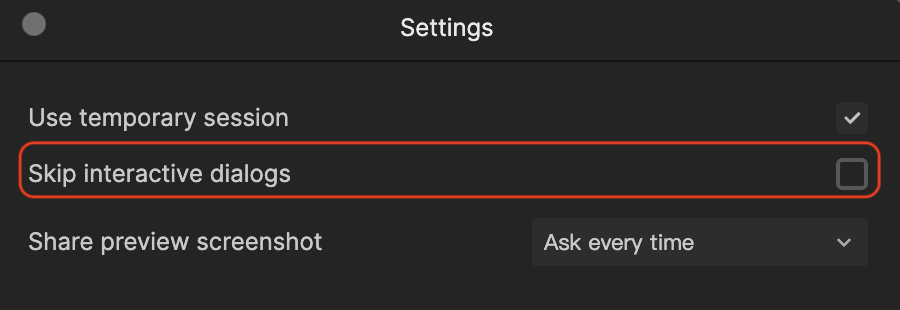
Skip Interactive Dialogs
Choose whether Ask AI pauses for your input during a task.
- Off (default): Ask AI displays dialogs when your input is needed, such as selecting an asset from search results
- On: Ask AI skips dialogs and continues using its best available choice
Keep this setting off for more control over the results, or turn it on to let Ask AI complete tasks without interruption.
Share Preview Screenshots
Choose whether Ask AI can capture screenshots of the Preview panel while working.
- Ask Every Time (default): Ask AI requests permission before taking each screenshot
- Allow for This Project: Ask AI can capture Preview screenshots for the current project without asking
- Never Allow: Ask AI cannot access the Preview panel
Allowing Preview screenshots helps Ask AI verify layouts and identify visual issues. If screenshots are disabled, you'll need to describe any visual problems in your prompts.

Ask AI and Other AI Features
Effect House includes several AI features, each designed for a different task.
- Create with AI generates a starting effect from a single prompt
- AI Editor trains and customizes AI image and video models for use in your effects
- Ask AI is a conversational agent that helps you build and refine effects by creating scenes, scripts, and assets
These features can be used together. For example, you can use Ask AI to build a game, then use AI Editor to create custom textures or visual assets.
Next Steps
Learn more about the Ask AI Guidelines and Limitations. It also explains current limitations, including Visual Scripting support, and highlights what to review before publishing your effect.